 COME
COMEUse COME Recovery from the Product Login Context
Continue through the product’s own login and recovery controls. The article and its screenshots cannot reset or receive your password.
You reached an explanatory article while trying to reset a password.
Start from the login page
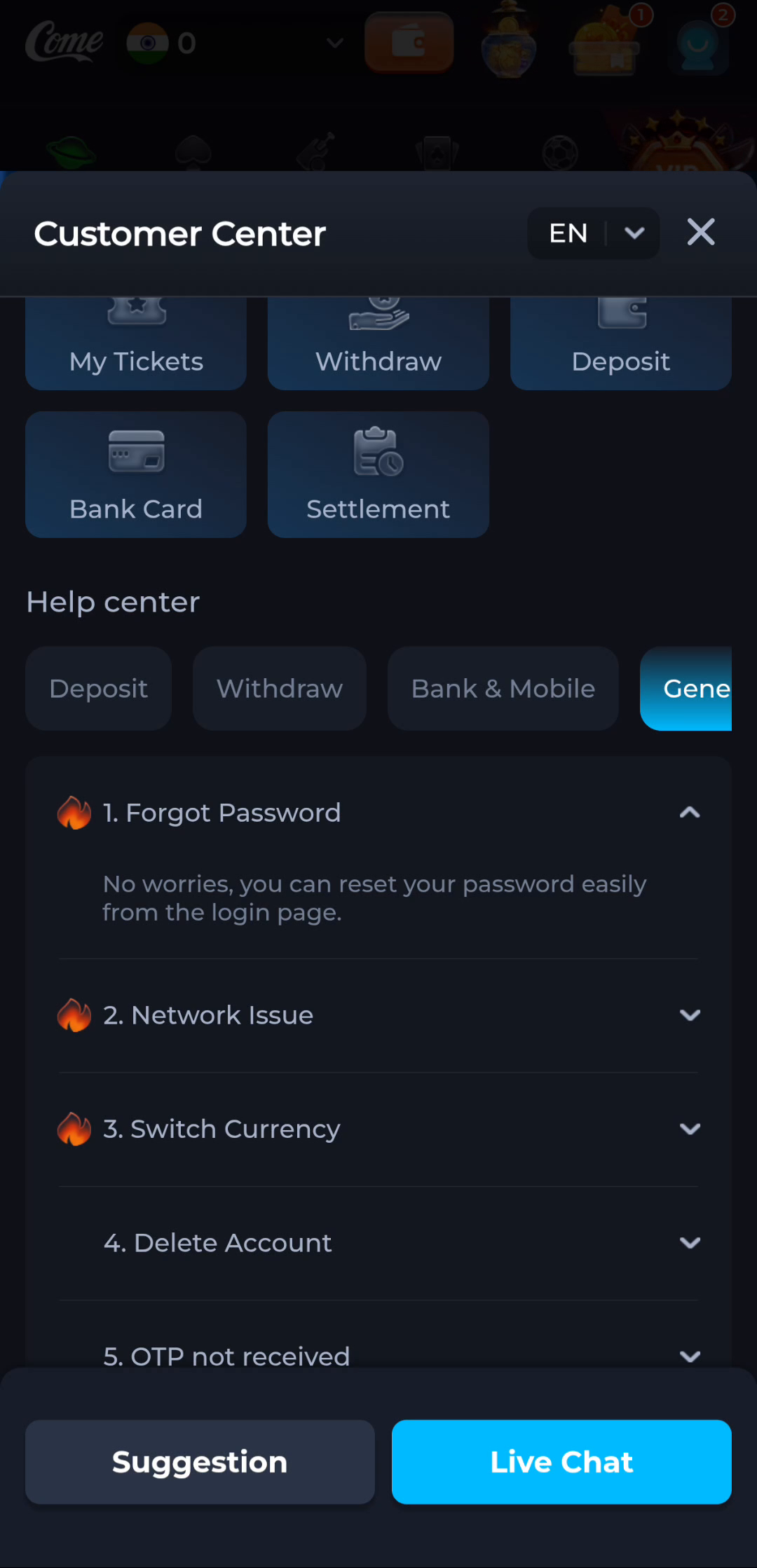
COME Customer Center includes a Forgot Password topic under General help. The illustrated topic says a password can be reset from the login page. Return to the intended product's current login page and use its recovery control. Read the instructions actually presented there; this guide does not invent form fields, code lengths or a promised completion time.
Password recovery and new registration have different purposes. Recovery concerns an existing account. Registration creates a new one. If your goal is to regain earlier records, keep the intended account method in mind and do not assume a new registration will restore them.
Check the recovery destination
If the recovery process shows a phone number, email address or other destination in masked form, compare it with the account method you expect. Use only a destination you control. If it is unfamiliar or no longer available, use the product's appropriate account-help route rather than trying another person's details.
A reset message and an OTP can have different purposes. Read the task and time associated with the request you made. Do not use an unsolicited reset link as proof that you initiated a process. If a message seems unrelated, return to the product independently and inspect the account state.
Protect the reset process
Enter a new password only within the intended product's recovery interface. Use a unique password and a trusted password manager where suitable. Do not send the new password, an OTP or a payment PIN through chat. Someone asking for a code to perform the reset on your behalf is asking for a secret that should remain under your control.
If the process reports that a link or code expired, follow its current instructions for a fresh request. Avoid generating many requests in quick succession, as messages can arrive late or out of order. Keep the exact error and request time if the process remains blocked.
Verify recovery separately from other issues
After the reset succeeds, use the normal login route and confirm the intended account. Then check the specific record you needed. A successful password change does not automatically resolve an unrelated loading problem or account-record question. Keep those results separate when asking for help.
If recovery cannot be completed, describe the stage and message privately through the product's help system. Redact secrets and unrelated personal information from any screenshot. This website cannot reset an external account, retrieve its password or promise how quickly support will respond.
A practical completion check
- Use Forgot Password from the actual product login page.
- Check the recovery destination and follow its current instructions.
- Confirm the intended account after normal login succeeds.
Keep the result tied to the exact screen and task. A useful stopping point is an understood next step; repeated actions are not a substitute for knowing what the earlier action did.
Questions about this task
Can this website reset my account?
No. Use the intended product’s current login-page recovery process.
What should I report if recovery fails?
The stage, request time and exact error, without the password or verification code.
A related next step
Read its stated scope and operator information separately from the external product. A description does not appoint the writer as app operator.